

The unexpected expiration of critical server certificates has plagued IT organizations ever since the dawn of their existence. An expired certificate has the possibility of causing the failure of SSL-encrypted communications, triggering those annoying browser warnings about untrusted certificates. In a worst-case scenario, like when the expired certificate is SharePoint’s Security Token Service Signing Certificate, any ability for users to authenticate into the SharePoint environment comes to a screeching halt, leaving every site in the farm a veritable ghost-town, complete with tumbleweeds and ominously circling vultures.
Being able to stay aware of upcoming expiration dates is not always an easy task. While many of the most commonly used certificate issuers provide email notifications of such potential occurrences, oftentimes those messages go ignored because they might be sent to the single person that originally started the relationship with the certificate issuer, someone who might not even be with the organization any longer or might not have any knowledge of the impact of expired certificates and how to go about renewing them before they expire.
Using PowerShell, we can create an automated system that can gather the information about every certificate in a farm and export that information into a centralized report as well as send email notifications when certificates are about to expire. This ensures that the IT professionals responsible for ensuring the validity of those certificates don’t have to manually click through possibly dozens to hundreds of nodes in each server’s certificate manager interface just to find those upcoming expiration dates.
How It’s Done
The crux of the PowerShell script that provides this warning system is the following cmdlet:
Get-ChildItem Cert:LocalMachine -Recurse
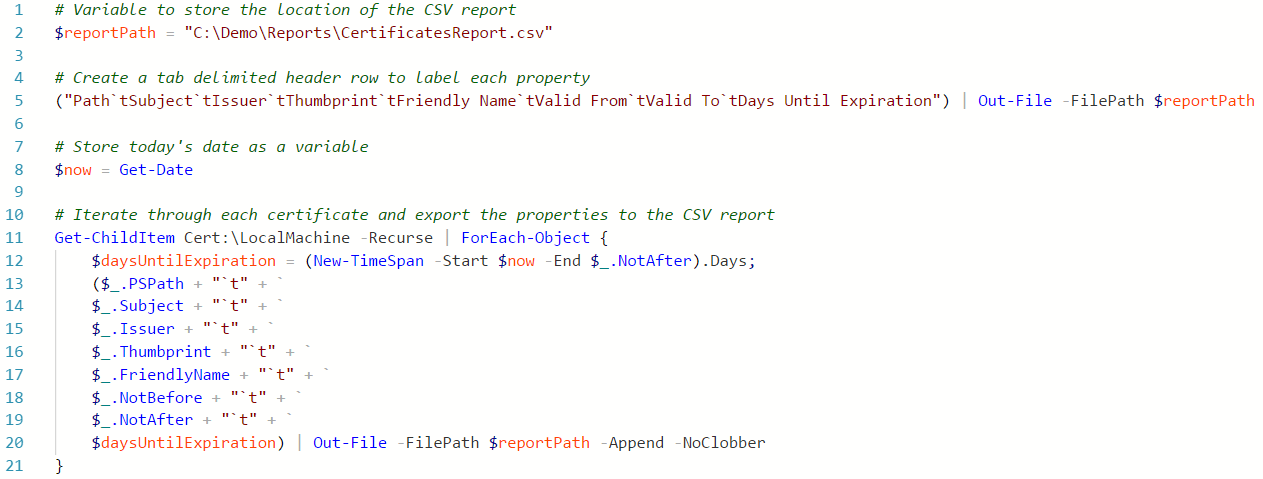
This cmdlet is what iterates though all the local server’s certificates in every certificate directory. This cmdlet can be stored to a variable which can further be iterated through to parse out the individual properties of each certificate. The expiration date of a certificate is represented by the NotAfter property. Therefore, calculating the number of days until a certificate expires can be performed by storing the current date as a variable and then using the New-TimeSpan cmdlet to provide the difference between the current date and the NotAfter property, like this:
$now = Get-Date
$daysUntilExpiration = (New-TimeSpan -Start $now -End $_.NotAfter).Days
After that, it’s just a matter of extracting other useful pieces of information about a certificate from properties such as PSPath, Subject, Issuer, Thumbprint, FriendlyName, and NotBefore . PowerShell’s Out-File cmdlet can easily send that information to a CSV file for simple reporting. A more complete version of such a script might look something like this:
Providing Added Functionality
This script provides a starting point for monitoring the validity of a server’s certificates. A few extra lines of code can extend the functionality even further to create a farm-wide automated warning system. Here are some examples of ways to expand on this:
·Wrap this code within a script block using the Invoke-Command cmdlet so this script can run on remote servers and return certificate information for the entire farm.
·Report if a certificate is used for an IIS site binding by importing the WebAdministration module, retrieving the server’s IIS bindings, and linking the bindings and certificates with the Thumbprint property of each as a primary key.
·Schedule the script to run daily to refresh the report automatically using Task Scheduler .
·Send certificate expiration warning messages by email using PowerShell’s Send-MailMessage cmdlet when the daysUntilExpiration variable reaches a certain number.
Worrying about server certificates expiring should no longer keep IT professionals awake at night. They have harder challenges to contend with already in this ever-changing landscape. With some simple PowerShell, the certificate information is easily accessible and can provide the kind of actionable data that allows you to prevent unwanted downtime rather than be forced to respond to disasters after they happen.